
DTP, Tutorials, Software
Hanging Conjunctions in InDesign? Fix Them with GREP (Once and for All)
InDesign is a powerful machine, but it still struggles with Polish grammar - specifically hanging conjunctions. Single-letter orphans at the end of a line are a typographic error no proofreader forgives. Scripts that used to handle this often break in newer versions. Luckily, there is GREP. Here is a reliable method to clean text in 30 seconds.
Hanging conjunctions - a problem as old as DTP
The "Hanging Conjunctions" script we all know and love does not always work with newer versions of InDesign (CC) and 64-bit architecture. It often ends with an error or no response at all. Instead of hunting for more plugins, use what InDesign has "under the hood" - GREP regular expressions.
Here is a step-by-step instruction on how to automatically attach conjunctions (a, i, o, u, w, z) to the word that follows.
Step-by-step instructions
- Go to Edit > Find/Change or use the shortcut
Ctrl+F(Mac:Cmd+F). - In the dialog, switch to the GREP tab.
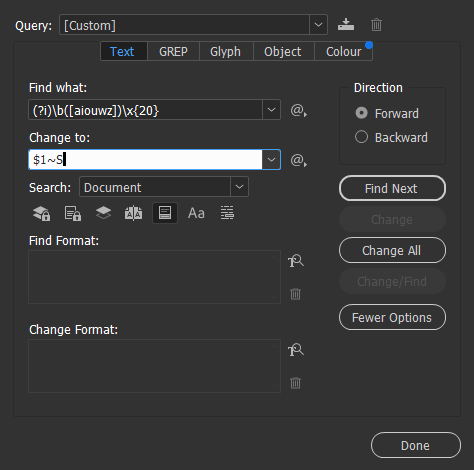
- In the Find What field, enter the following code:
(?i)\b([aiouwz])\x{20}
What does this code mean? Let's break it down so you know what you are doing:
(?i)- Case Insensitive. Makes InDesign ignore letter case (it will find both "a" and "A").\b- Word Boundary. A word boundary. It prevents matching letters inside words (e.g., it will not find the "u" in "auto").([aiouwz])- This is the most important part. In the square bracket we list our conjunctions. The round bracket creates a group that we will reuse.\x{20}- Hex code for a normal space.
In short: we are looking for a single-letter conjunction followed by a space.
- In the Change To field, enter:
$1~S
What is happening here?
$1- a reference to the content of the first group (our letter). We tell the program: "Insert the same letter you found."~S- the special code for a Non-breaking Space.
Result
When you click Change All, InDesign replaces every regular space after a conjunction with a non-breaking space. This way the letter "sticks" to the next word and never stays alone at the end of a line.
Important: This method is better than applying the "No Break" attribute, because it physically replaces the space character. That means you do not create artificial local overrides in the text, and the file remains typographically "clean."
Pro tip: Save it for later
You do not have to type this every time. In the Find/Change window, click the floppy disk icon above the "Find" field to save this query as something like "Polish Conjunctions." Next time you can call it with one click from the list.
Good luck with typesetting!